Digital Graphic
  • Home
  • Video Tutorials
    • Photoshop Tutorials
      • All Tutorials
      • Logo Design Tutorials
    • Corel Draw Tutorials
    • Illustrator Tutorials
    • Lightroom Tutorials
  • Live TV
  • Digigraphic Links
  • Menu Menu
Fix Big Nose in Photoshop

Fix Big Nose in Photoshop

Photoshop Tutorials, Video Tutorials

to day we want to change hair color in adobe photoshop .you can change any hair color whit this trick . in this tutorial we use saturation option . you can download image links in description blow

The nose, prominently situated at the center of our face, often draws significant attention in our appearance. For those who are curious about how they might look with a different nose shape but are hesitant about plastic surgery, Photoshop offers a practical solution. This guide will delve into the specifics of using Photoshop’s liquify feature to edit the nose in a photograph. This process is not only useful for personal curiosity but also a valuable skill for digital artists and photographers.

Fix Big Nose in Photoshop

Fix Big Nose in Photoshop ?

Photoshop, a powerhouse in the realm of digital image editing, provides a range of tools that can simulate physical alterations without the need for actual changes to the body. This is especially useful for those who want to visualize a different appearance or for professionals who need to create varied looks for clients or projects.

DOWNLOAD

Fix Big Nose in Photoshop

Preparing Your Image

  1. Choosing the Right Image: Selecting an image with a white background can simplify the editing process. However, this technique is also applicable to images with full backgrounds.
  2. Opening Your Image: Launch Photoshop and open the image you wish to edit.

Creating a Workable Copy

  1. Copying the Image: Press Ctrl + J to create a duplicate layer of the original image. This step is crucial for preserving the original photo.
  2. Converting to a Smart Object: Right-click on the new layer and select ‘Convert to Smart Object‘. This allows for non-destructive editing, meaning you can revert changes if necessary.

Using the Liquify Tool

  1. Navigate to ‘Filter’ and then select ‘Liquify’.
  2. A new window will pop up with your image and various tool options.
  3. The tools on the left side of the Liquify window are your main editing tools, each serving different purposes.
  4. Use a smaller brush for more precise edits on the nose. Adjust the brush size under the ‘Brush Tool’ options.
  5. Use the brush to gently drag and sculpt the nose. Small, subtle movements are key to natural-looking results.
  6. Toggle the preview option on and off to compare the edited version with the original.

Finalizing the Edit

  1. Applying the Changes: Once satisfied, click ‘OK’ to apply the changes to your smart object layer.
  2. Reverting If Necessary: If you need to revert to the original state, you can easily do so by canceling the liquify effect on the smart object.

Conclusion

Through this guide, you’ve learned how to effectively use Photoshop to edit the nose in a photograph. Remember, practice makes perfect. Your skill in using these tools will improve over time, allowing for more refined and natural-looking adjustments.

March 30, 2024/0 Comments
https://en.digigraphic.net/wp-content/uploads/2024/03/Fix-Big-Nose-in-Photoshop-site.jpg 1080 1920 digigraphic.net http://en.digigraphic.net/wp-content/uploads/2023/12/logo.digi_.png digigraphic.net2024-03-30 12:36:312024-03-30 12:47:24Fix Big Nose in Photoshop
Photoshop Oil Paint Filter in Photoshop

Photoshop Oil Paint Filter in Photoshop

Photoshop Tutorials, Video Tutorials

if you want to Use Oil Paint in Photoshop just follow my lead and do it , yo can subscribe our youtube channel and watch other photoshop tutorials , you can find How to Design Logo In Photoshop Tutorial in This youtube Photoshop Tutorials channel and Pls Like The Video. How to Use Photoshop Oil Paint Filter Thanks

Photoshop Oil Paint Filter in Photoshop

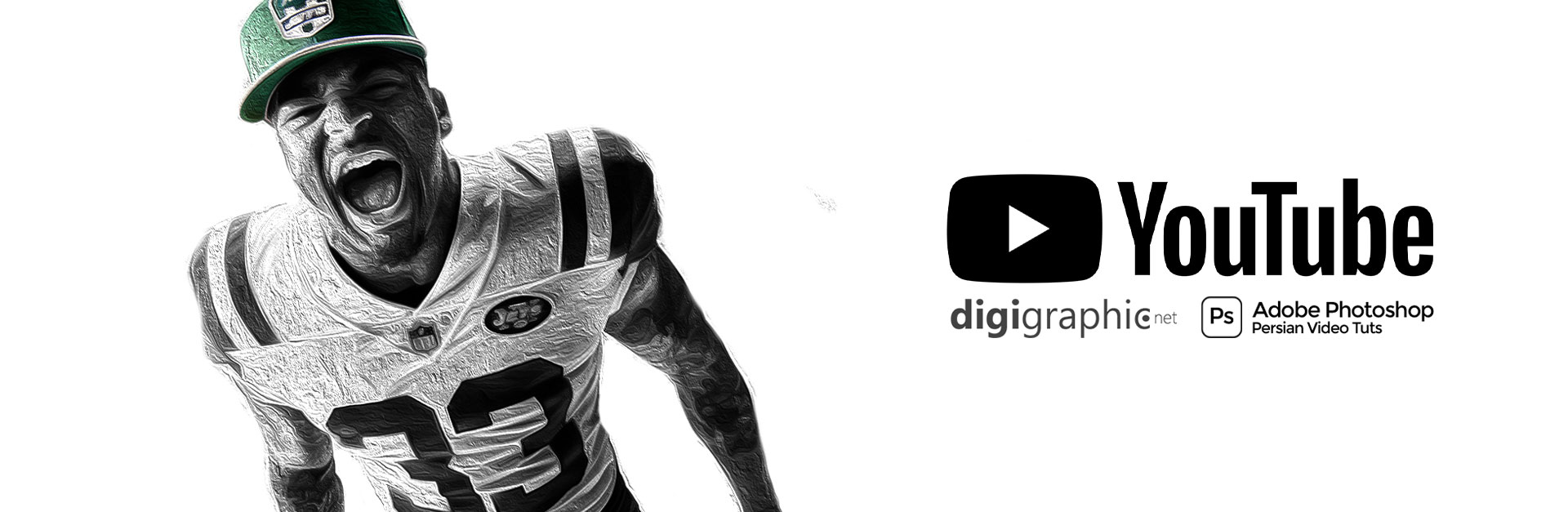
Transform your photos into stunning oil paintings with Photoshop’s Oil Paint filter. Discover how the brush and lighting options affect different aspects of the oil painting effect, and how to adjust the effect in different areas by combining two Oil Paint filters on the same image! Even if you’re a beginner with Photoshop, this video will have you creating paintings from photos in minutes!

DOWNLOAD

if you want to learn about change hair color in photoshop , you can click hear an watch full video tutorials and if you want to download psd files , large format images , after effects projects and more … you can click hear and download free files . Convert Photo to vector

Photoshop Oil Paint Filter in Photoshop

In this video, you’ll learn

0. How to Use Smart Sharpen

1. How to apply the Oil Paint filter to your image non-destructively

2. Where to find the Oil Paint filter in Photoshop

3. How the Brush options affect the style of the brush strokes

4. How the Lighting options affect the contrast of the brush strokes

5. How to Make Light Flares On Oil Painted Image

March 18, 2024/0 Comments
https://en.digigraphic.net/wp-content/uploads/2024/03/tmbnail-SITE.jpg 1080 1920 digigraphic.net http://en.digigraphic.net/wp-content/uploads/2023/12/logo.digi_.png digigraphic.net2024-03-18 19:16:122024-03-18 19:28:33Photoshop Oil Paint Filter in Photoshop
24 Best Microsoft Bing Ai Image Generator Prompts

24 Best Microsoft Bing Ai Image Generator Prompts

Ai Tutorials, Video Tutorials

24 Best Microsoft Bing Ai Image Generator Prompts

– Microsoft revealed its Bing Image Creator last Tuesday, which uses an updated version of OpenAI’s DALL-E model. In this ai art tutorial I show how you can generate an image simply by typing a few words on the Image Creator tool.
24 Best Microsoft Bing Ai Image Generator Prompts

Links from today’s video ➜ bing.com/create

1/ A family of bears preparing for hibernation in their den. The den is decorated with some paintings, rugs, and plants

2/ A cozy cabin in the woods surrounded by colorful autumn leaves

3/ haunted castle with a dark knight in front of it, 1970s dark fantasy book cover art

4/ A realistic still life painting of a cornucopia made of woven straw, filled with a variety of fruits, vegetables, and nuts. The cornucopia is placed on a wooden table with a dark red tablecloth, and some of the produce spills out of it onto the table, creating a contrast of colors and shapes

5/ A delicious breakfast of fluffy pancakes stacked high on a plate, drizzled with golden maple syrup and topped with a melting pat of butter, served with a glass of orange juice and a fork and knife, realistic 3D animation

6/ A waterfall that flows from a hidden cave into a crystal clear pool, surrounded by fall colors, with a rainbow and a unicorn in the background, fantasy landscape
24 Best Microsoft Bing Ai Image Generator Prompts

DOWNLOAD

7/ a modern cafe logo of a polar bear cub holding coffee, located on a sign outside a brick building on a sunny, snowy morning

8/ cute small forest zen wood temple, 3d game isometric, detailed, white background

9/ 3D render of a penguin with colorful background

10/ 1970’s sci robot portrait, studio light, on an emerald colored background

11/ A quaint, snow-covered village at dusk. The scene features twinkling lights from cozy cottages, a frozen pond with people ice-skating, and snow-capped trees.

12/ A picture of a fall landscape with trees, mountains, and a river, except the trees have purple leaves, the mountains are blue, and the river is orange, on a planet with two moons and a ring system, alien and surreal digital art

13/ A realistic image of a red fox with a bushy tail and black ears, walking on a dirt path through a forest with tall trees and colorful leaves, with rays of sunlight and mist creating a magical atmosphere, morning wildlife photography

14/ graphic illustration stamp of Swiss Alps in winter

15/ a city with buildings made of different, bright, colorful candies and looks like a wondrous candy land

16/ A field of tulips in different colors under a blue sky

17/ A picnic on a green meadow with a basket of fruits and flowers

18/ A rainbow over a waterfall surrounded by lush vegetation

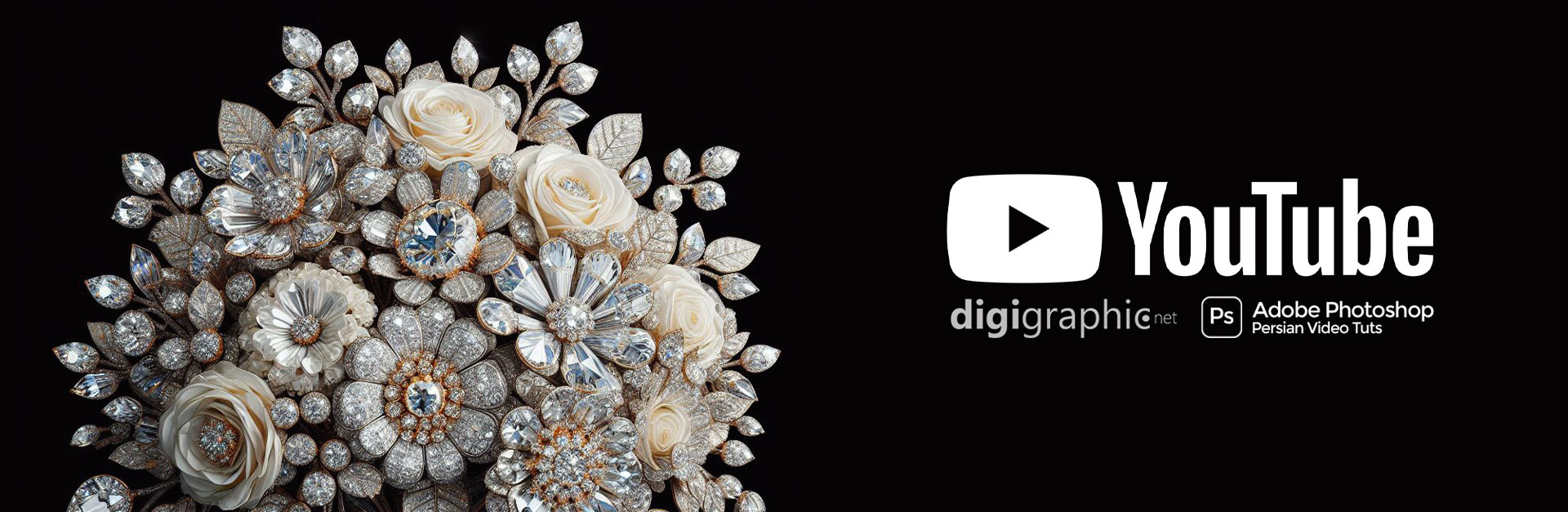
19/ reastic image of a bouquet of flowers made of diamonds

20/ realistic image of a cold glass of lemonade chilling in a pile of snow, polar bears in the background

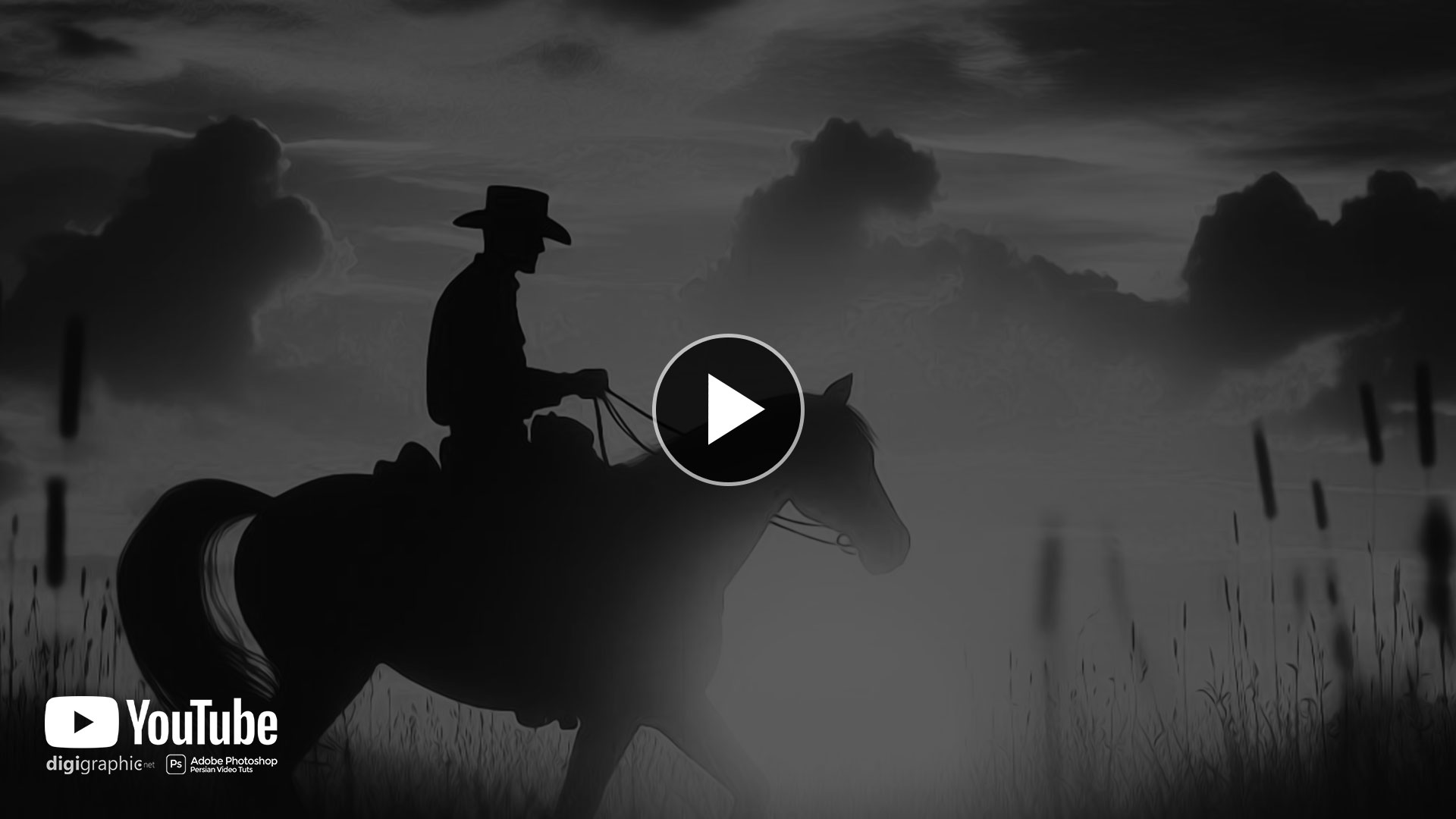
21/ silhouette of a cowboy riding into the sunset, c4d, dreamy and optimistic, vibrant sky

22/ abstract 3D shape half sun half moon, foliage and flowers incorporated, light emitting, black background

23/ A child flying a kite in a park with other kids playing in the background

24/ A butterfly landing on a blooming cherry branch


Best Bing AI Prompts for Maximizing Results in Content Creation

In today’s fast-paced digital world, leveraging Bing AI for content creation can streamline your workflow, save time, and enhance the quality of your output. Bing AI (powered by OpenAI’s GPT) is an advanced tool capable of generating human-like text, answering questions, and providing creative suggestions. To get the best results from Bing AI, it’s essential to craft effective prompts that guide the AI toward the content you’re aiming to create. Below, we’ll explore the best Bing AI prompts for various use cases, from blog posts to product descriptions and beyond.

Why Use Bing AI Prompts?

  • Speed: Bing AI can generate high-quality content in a fraction of the time it would take to write manually.
  • Consistency: AI prompts ensure that your content follows a cohesive style and tone.
  • Creativity: Bing AI can help generate fresh ideas, write creatively, and offer new perspectives on your topic.
  • SEO Optimization: Bing AI can assist with keyword integration, crafting SEO-friendly content that ranks higher in search engines.

Best Bing AI Prompts for Different Content Needs

1. SEO Blog Post Writing Prompts

  • “Write an SEO-optimized blog post on [Your Topic] with a focus on the keyword ‘[Primary Keyword]’. Include an engaging introduction, subheadings, and a clear call to action.”
    • This prompt helps Bing AI generate content that includes relevant keywords and is structured for SEO, improving the chances of ranking higher on search engines.
  • “Create an informative blog post with 10 tips on [Topic], incorporating the keyword ‘[Primary Keyword]’ throughout the post.”
    • Asking for tips helps to break down the content into digestible, easy-to-read sections while ensuring SEO optimization.
  • “Write an in-depth, long-form article on [Topic] with an introduction, conclusion, and well-researched information. Make sure to include the keyword ‘[Primary Keyword]’ in the headings.”
    • Long-form articles are favored by search engines, and this prompt ensures the right content structure, including important keywords in titles and subheadings.

2. Product Description Writing Prompts

  • “Generate a compelling product description for [Product Name] highlighting its main features, benefits, and why customers should purchase it.”
    • This is perfect for e-commerce platforms and product listings, ensuring the product is presented in a way that attracts potential buyers.
  • “Write a detailed product description for [Product] in the [Niche/Industry] with a focus on its unique selling points and how it solves a specific problem.”
    • Tailoring the description to the niche helps to better engage the target audience and drive sales.

3. Social Media Content Prompts

  • “Create a catchy caption for an Instagram post about [Topic], incorporating popular hashtags relevant to the industry.”
    • Bing AI can assist with generating social media-friendly content that’s engaging and on-trend.
  • “Write a short Twitter post about [Event/Topic], making it informative yet engaging with a call to action.”
    • Twitter posts are concise but need to pack a punch. This prompt helps you get straight to the point while encouraging interaction.

4. Email Marketing Campaign Prompts

  • “Write a compelling email subject line and body for a campaign promoting [Product/Service]. Make sure the message is personalized and includes a strong call to action.”
    • A good subject line is critical for open rates, and a well-crafted email body can drive conversions. This prompt ensures both elements are optimized.
  • “Create an email sequence for a [Product/Service] launch, with three emails designed to build excitement, educate the audience, and convert them into customers.”
    • This type of prompt helps Bing AI generate content that fits the tone and objective of a multi-part email marketing campaign.

5. Creative Writing and Storytelling Prompts

  • “Write a short story about [Character/Scenario] with a twist ending, incorporating elements of [Genre/Theme].”
    • Great for content creators, bloggers, and writers who want to spark creativity and generate unique stories with specific guidelines.
  • “Create a dialogue scene between two characters, where [Character 1] is trying to convince [Character 2] to [Action], with emotional tension building up.”
    • Prompts like these can help writers develop engaging narratives with clear character motivations and emotional depth.

6. SEO Content for Local Businesses

  • “Generate an SEO-friendly website homepage for a [Local Business Type] based in [City/Region], targeting local customers looking for [Service/Products].”
    • Local SEO is essential for businesses targeting specific geographic areas. This prompt ensures that the content is optimized for local search terms and customer needs.
  • “Write a detailed FAQ section for a [Local Business], including answers to common customer questions and incorporating important local keywords.”
    • FAQs help improve user experience while also enhancing your website’s SEO by addressing common queries and optimizing for long-tail keywords.

Tips for Writing Effective Bing AI Prompts

  • Be Specific: The more detailed your prompt, the more relevant and accurate the output will be. Include information like target audience, tone, style, and objectives to guide the AI.
  • Use Keywords: Make sure to mention the keywords you want to rank for in your prompt. For SEO content, this is particularly important to ensure your content is optimized.
  • Request Structure: If you’re aiming for a specific structure (like a blog post with headings, or a product description with features and benefits), mention it explicitly.
  • Revise and Fine-Tune: While Bing AI is powerful, it may require some editing after generating the content. Fine-tune the results to fit your exact needs and voice.

Conclusion: Mastering the Art of Bing AI Prompts

Using the best Bing AI prompts can dramatically enhance your content creation process, whether you’re writing SEO-focused blog posts, product descriptions, or creative stories. By crafting clear, specific prompts and guiding Bing AI with detailed instructions, you can produce high-quality content that resonates with your audience and ranks well in search engines.

Start experimenting with these prompts today and watch your content creation process become faster, more efficient, and more effective. With Bing AI, the possibilities are limitless!

 

February 17, 2024/0 Comments
https://en.digigraphic.net/wp-content/uploads/2024/02/24-best-bing-prompts-site.jpg 1080 1920 digigraphic.net http://en.digigraphic.net/wp-content/uploads/2023/12/logo.digi_.png digigraphic.net2024-02-17 16:32:512024-12-08 22:39:4724 Best Microsoft Bing Ai Image Generator Prompts
How to Design ICON in Photoshop

How to Design ICON in Photoshop

Logo Design Tutorials, Photoshop Tutorials, Video Tutorials

Creating realistic book cover mock-ups in Photoshop can help you to imagine how your photography portfolio, novel, or non-fiction book will look like in the hands of your readers! How to Create Book Mockup In photoshop

how to design icon in photoshop

In this tutorial, I will teach you How to Design ICON in Photoshop that you can use whenever you want!

Unlike other tutorials, I will not be using the Distort option found under the Free Transform as it can mess up the original aspect ratio of your image.

This technique often results in an unnatural, stretched-out image that is not convincing enough to be a mock-up book cover.

how to design icon in photoshop

How to Create Book Mockup In photoshop \ Easily and soft \ just follow my lead

we make graphic design Video Tutorials every week and publish for free in this channel . we sale business graphic packages in our site . come and visit digigraphic.net Video photoshop tutorials of digigraphic.net we make logo design , photoshop tutorials , graphic tutorials , digigraphic , after effects , premiere , corel draw and more softwares

Adobe Photoshop is a raster graphics editor developed and published by Adobe Inc. for Windows and macOS. It was originally created in 1987 by Thomas and John Knoll. Since then, the software has become the most used tool for professional digital art, especially in raster graphics editing

The most important thing is , It was hard for me before I understood that . all jobs in the world is hard for you . if you just want to look from outside But after leaving the first step you have no fear like past  if you want to be a logo designer and make easy logo Design in photoshop you Dont need fear . say to your self . im a logo designer since my birthday and you can do it 100% . nothing change your mind never ever photo editing in photoshop easy logo design in photoshop

February 13, 2024/0 Comments
https://en.digigraphic.net/wp-content/uploads/2024/02/icon-SITE-1.jpg 1080 1920 digigraphic.net http://en.digigraphic.net/wp-content/uploads/2023/12/logo.digi_.png digigraphic.net2024-02-13 19:07:162024-02-13 19:11:04How to Design ICON in Photoshop
Blend Text in Photoshop - Photoshop Blending Options

Blend Text in Photoshop – Photoshop Blending Options

Photoshop Tutorials, Video Tutorials

Hey Everyone, In this video tutorial I am teaching you How To Blend Text in Photoshop | Blending Options in Photoshop | Adobe Photoshop Watch the tutorial until the end.

Blend Text in Photoshop - Photoshop Blending Options

Blend Text in Photoshop | Photoshop Blending Options

If you have any questions, ask me in the comment section. If you like this tutorial, please share it with your friends. Try to watch all my tutorials.

Blend Text in Photoshop - Photoshop Blending Options

Blending modes are divided into 6 sections: Normal, Darken, Lighten, Contrast, Inversion, and Component, each serving a different purpose. Commonly used specific blending modes include Multiply, Screen, Overlay, and Color, each creating distinct effects on the blend and base layers.

we make graphic design Video Tutorials every week and publish for free in this channel . we sale business graphic packages in our site . come and visit digigraphic.net Video photoshop tutorials of digigraphic.net we make logo design , photoshop tutorials , graphic tutorials , digigraphic , after effects , premiere , corel draw and more softwares

Adobe Photoshop is a raster graphics editor developed and published by Adobe Inc. for Windows and macOS. It was originally created in 1987 by Thomas and John Knoll. Since then, the software has become the most used tool for professional digital art, especially in raster graphics editing

The blending mode specified in the options bar controls how pixels in the image are affected by a painting or editing tool. Think in terms of the following colors when visualizing a blending mode’s effect:

  • The base color is the original color in the image.
  • The blend color is the color being applied with the painting or editing tool.
  • The result color is the color resulting from the blend.

DOWNLOAD

Blending modes are divided into 6 sections: Normal, Darken, Lighten, Contrast, Inversion, and Component, each serving a different purpose. Commonly used specific blending modes include Multiply, Screen, Overlay, and Color, each creating distinct effects on the blend and base layers.

February 13, 2024/0 Comments
https://en.digigraphic.net/wp-content/uploads/2024/02/site-blend.jpg 1080 1920 digigraphic.net http://en.digigraphic.net/wp-content/uploads/2023/12/logo.digi_.png digigraphic.net2024-02-13 14:28:072024-02-13 14:29:43Blend Text in Photoshop – Photoshop Blending Options
Blend Text in Photoshop And Photoshop Blending Options

Blend Text in Photoshop And Photoshop Blending Options

Photoshop Tutorials, Video Tutorials

Hey Everyone, In this video tutorial I am teaching you How To Blend Text in Photoshop | Blending Options in Photoshop | Adobe Photoshop Watch the tutorial until the end.

Blend Text in Photoshop And Photoshop Blending Options

Blend Text in Photoshop And Photoshop Blending Options

If you have any questions, ask me in the comment section. If you like this tutorial, please share it with your friends. Try to watch all my tutorials.

Blend Text in Photoshop And Photoshop Blending Options

Blending modes are divided into 6 sections: Normal, Darken, Lighten, Contrast, Inversion, and Component, each serving a different purpose. Commonly used specific blending modes include Multiply, Screen, Overlay, and Color, each creating distinct effects on the blend and base layers.

we make graphic design Video Tutorials every week and publish for free in this channel . we sale business graphic packages in our site . come and visit digigraphic.net Video photoshop tutorials of digigraphic.net we make logo design , photoshop tutorials , graphic tutorials , digigraphic , after effects , premiere , corel draw and more softwares

Adobe Photoshop is a raster graphics editor developed and published by Adobe Inc. for Windows and macOS. It was originally created in 1987 by Thomas and John Knoll. Since then, the software has become the most used tool for professional digital art, especially in raster graphics editing

The blending mode specified in the options bar controls how pixels in the image are affected by a painting or editing tool. Think in terms of the following colors when visualizing a blending mode’s effect:

  • The base color is the original color in the image.
  • The blend color is the color being applied with the painting or editing tool.
  • The result color is the color resulting from the blend.

DOWNLOAD

Blending modes are divided into 6 sections: Normal, Darken, Lighten, Contrast, Inversion, and Component, each serving a different purpose. Commonly used specific blending modes include Multiply, Screen, Overlay, and Color, each creating distinct effects on the blend and base layers.

January 13, 2024/0 Comments
https://en.digigraphic.net/wp-content/uploads/2024/01/BELEND-SITE-1.jpg 1080 1920 digigraphic.net http://en.digigraphic.net/wp-content/uploads/2023/12/logo.digi_.png digigraphic.net2024-01-13 15:12:172024-02-17 18:46:04Blend Text in Photoshop And Photoshop Blending Options
How to Make Batman Holding Phone Ai IMAGES For FREE

How to Make Batman Holding Phone Ai IMAGES For FREE

Ai Tutorials, Video Tutorials

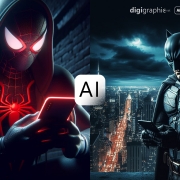
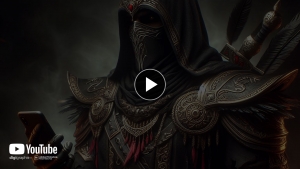
How to Make Batman Holding Phone Ai IMAGES For FREE From Digigraphic . net

How to Make Batman Holding Phone Ai IMAGES For FREE

In this educational video, we will show you how to make stunning social media trend images for absolutely FREE using Microsoft Bing. Discover the step-by-step process and learn the tricks to creating eye-catching visuals that will make your social media profiles stand out. Whether you’re a small business owner or a content creator, this practical tutorial will help you enhance your online presence. Join us now and start making beautiful trend images with Microsoft Bing! Watch now and elevate your social media game.

How to Make Batman Holding Phone Ai IMAGES For FREE

How to Make Batman Holding Phone Ai IMAGES For FREE

we make graphic design Video Tutorials every week and publish for free in this channel . we sale business graphic packages in our site . come and visit digigraphic.net Video photoshop tutorials of digigraphic.net we make logo design , photoshop tutorials , graphic tutorials , digigraphic , after effects , premiere , corel draw and more softwares

Adobe Photoshop is a raster graphics editor developed and published by Adobe Inc. for Windows and macOS. It was originally created in 1987 by Thomas and John Knoll. Since then, the software has become the most used tool for professional digital art, especially in raster graphics editing

How to Make Batman Holding Phone Ai IMAGES For FREE

Adobe Photoshop is a raster graphics editor developed and published by Adobe Inc. for Windows and macOS. It was originally created in 1987 by Thomas and John Knoll. Since then, the software has become the most used tool for professional digital art, especially in raster graphics editing

In this educational video, we will show you how to make stunning social media trend images for absolutely FREE using Microsoft Bing. Discover the step-by-step process and learn the tricks to creating eye-catching visuals that will make your social media profiles stand out. Whether you’re a small business owner or a content creator, this practical tutorial will help you enhance your online presence. Join us now and start making beautiful trend images with Microsoft Bing! Watch now and elevate your social media game.

In this educational video, we will show you how to make stunning social media trend images for absolutely FREE using Microsoft Bing. Discover the step-by-step process and learn the tricks to creating eye-catching visuals that will make your social media profiles stand out. Whether you’re a small business owner or a content creator, this practical tutorial will help you enhance your online presence. Join us now and start making beautiful trend images with Microsoft Bing! Watch now and elevate your social media game.

Prompts

1-
Dark BATMAN holding a PHONE

2-

Dark spiderMAN holding a PHONE

3-

LORD OF THE RINGS DARDK KNIGHTS holding a PHONE

4-

STARWARS Dark RIDER holding a PHONE

DOWNLOAD

January 6, 2024/0 Comments
https://en.digigraphic.net/wp-content/uploads/2024/01/tmbnail-siteee-copy.jpg 1080 1920 digigraphic.net http://en.digigraphic.net/wp-content/uploads/2023/12/logo.digi_.png digigraphic.net2024-01-06 12:31:182024-02-13 14:11:31How to Make Batman Holding Phone Ai IMAGES For FREE
How to Make Prince of Persia AI TRENDING IMAGES For FREE

How to Make Prince of Persia AI TRENDING IMAGES For FREE

Ai Tutorials, Video Tutorials

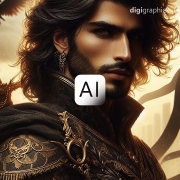
How to Make Prince of Persia AI TRENDING IMAGES For FREE From Digigraphic . net

How to Make Prince of Persia AI TRENDING IMAGES For FREE

In this educational video, we will show you how to make stunning social media trend images for absolutely FREE using Microsoft Bing. Discover the step-by-step process and learn the tricks to creating eye-catching visuals that will make your social media profiles stand out. Whether you’re a small business owner or a content creator, this practical tutorial will help you enhance your online presence. Join us now and start making beautiful trend images with Microsoft Bing! Watch now and elevate your social media game.

How to Make Prince of Persia AI TRENDING IMAGES For FREE

we make graphic design Video Tutorials every week and publish for free in this channel . we sale business graphic packages in our site . come and visit digigraphic.net Video photoshop tutorials of digigraphic.net we make logo design , photoshop tutorials , graphic tutorials , digigraphic , after effects , premiere , corel draw and more softwares

Adobe Photoshop is a raster graphics editor developed and published by Adobe Inc. for Windows and macOS. It was originally created in 1987 by Thomas and John Knoll. Since then, the software has become the most used tool for professional digital art, especially in raster graphics editing

Prompts

1-
Dark PRINCE OF PERSIA

2-

PRINCE OF PERSIA holding a PHONE

3-
DARDK PRINCE OF PERSIA Holding a PHONE

DOWNLOAD

January 6, 2024/0 Comments
https://en.digigraphic.net/wp-content/uploads/2024/01/tmbnail-siteee-copy22.jpg 1080 1920 digigraphic.net http://en.digigraphic.net/wp-content/uploads/2023/12/logo.digi_.png digigraphic.net2024-01-06 12:24:452024-02-13 14:13:11How to Make Prince of Persia AI TRENDING IMAGES For FREE
Birthday Photo Edit In Photoshop Tutorial

Birthday Photo Edit by Ribbon In Photoshop

Photoshop Tutorials, Video Tutorials

To Day we Want To Make Birthday Photo Edit by Ribbon In Photoshop Tutorial | Ribon . We can Use this Flare Trick For poster and Photographys , Ribon Is Easy Work by Brush tool and gradients . we need to Use Blandign modes for This

Birthday Photo Edit In Photoshop Tutorial

Creating design elements in photoshop is a great way to add unique buttons and headers to your web design projects. In this tutorial, we’re going to be making a simple, easy ribbon banner in photoshop. This tutorial is perfect for beginners, but assumes you know the photoshop basics including opening a document, creating layers and duplicating layers.

Birthday Photo Edit In Photoshop Tutorial

This is just one of many options when creating design elements in photoshop for your web project. With flat UI design still prominent as a popular and sleek trend among web designers, using photoshop to build interesting elements will help give your design a fresh look. What other design elements would you like to learn to create in photoshop? Let us know in the comments!

we make graphic design Video Tutorials every week and publish for free in this channel . we sale business graphic packages in our site . come and visit digigraphic.net Video photoshop tutorials of digigraphic.net we make logo design , photoshop tutorials , graphic tutorials , digigraphic , after effects , premiere , corel draw and more softwares

Adobe Photoshop is a raster graphics editor developed and published by Adobe Inc. for Windows and macOS. It was originally created in 1987 by Thomas and John Knoll. Since then, the software has become the most used tool for professional digital art, especially in raster graphics editing

DOWNLOAD

January 6, 2024/0 Comments
https://en.digigraphic.net/wp-content/uploads/2024/01/photo-edit-in-ps-site22-END.jpg 1080 1920 digigraphic.net http://en.digigraphic.net/wp-content/uploads/2023/12/logo.digi_.png digigraphic.net2024-01-06 05:16:472024-01-15 20:17:44Birthday Photo Edit by Ribbon In Photoshop
How to make Microworld of each country AI TRENDING IMAGES For FREE

How to make Microworld of each country AI TRENDING IMAGES For FREE

Ai Tutorials, Video Tutorials

How to make Microworld of each country AI TRENDING IMAGES For FREE From Digigraphic . net

How to make Microworld of each country AI TRENDING IMAGES For FREE

In this educational video, we will show you how to make stunning social media trend images for absolutely FREE using Microsoft Bing. Discover the step-by-step process and learn the tricks to creating eye-catching visuals that will make your social media profiles stand out. Whether you’re a small business owner or a content creator, this practical tutorial will help you enhance your online presence. Join us now and start making beautiful trend images with Microsoft Bing! Watch now and elevate your social media game.

How to make Microworld of each country AI TRENDING IMAGES For FREE

Prompts

1-
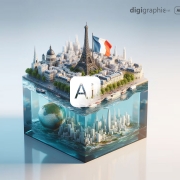
ultra realistic 8k mini world of Iran capital city with a flag . on a cube. white background, bottom part of the cube is ocean with water reflection on the ground

DOWNLOAD

January 6, 2024/0 Comments
https://en.digigraphic.net/wp-content/uploads/2024/01/tmbnail-site-3.jpg 1080 1920 digigraphic.net http://en.digigraphic.net/wp-content/uploads/2023/12/logo.digi_.png digigraphic.net2024-01-06 04:29:552024-02-13 14:14:01How to make Microworld of each country AI TRENDING IMAGES For FREE
Page 1 of 512345

Commercial Ads

English Youtube Channel
Ai Youtube Channel
Persian Youtube Channel
Photoshop Tutorials

Digigraphic Instagram
Digiprint
Online Card
Sinaabasi Instagram

Facebook Page
Telegram Group
Telegram Channel
Live Tv

X-Social (twitter)
Reddit
NFC Cards
Digi QrCode

Aparat Channel
Lightroom Tutorial
Logo Design
Photoshop Tutorials

English Youtube Channel
Ai Youtube Channel
Persian Youtube Channel
Photoshop Tutorials

Digigraphic Instagram
Digiprint
Online Card
Sinaabasi Instagram

X-Social (twitter)
Reddit
NFC Cards
Digi QrCode

Facebook Page
Telegram Group
Telegram Channel
Live Tv

Aparat Channel
Lightroom Tutorial
Logo Design
Photoshop Tutorials

Scroll to top