Digital Graphic
  • Home
  • Video Tutorials
    • Photoshop Tutorials
      • All Tutorials
      • Logo Design Tutorials
    • Corel Draw Tutorials
    • Illustrator Tutorials
    • Lightroom Tutorials
  • Live TV
  • Digigraphic Links
  • Menu Menu
Fix Big Nose in Photoshop

Fix Big Nose in Photoshop

Photoshop Tutorials, Video Tutorials

to day we want to change hair color in adobe photoshop .you can change any hair color whit this trick . in this tutorial we use saturation option . you can download image links in description blow

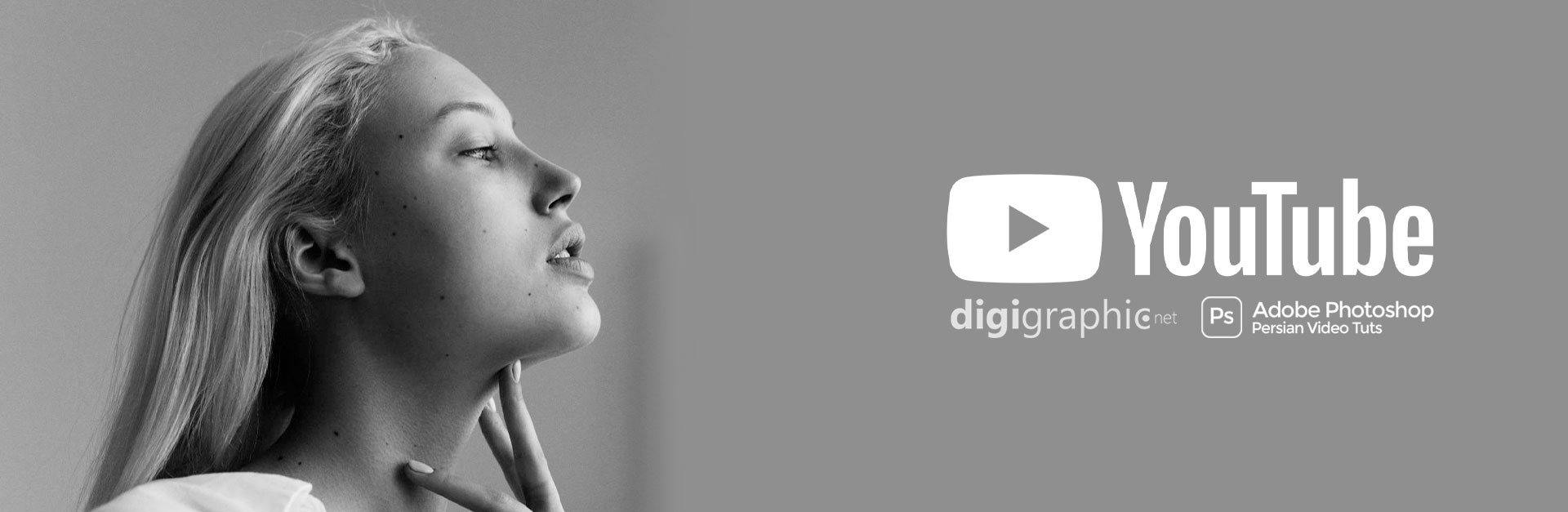
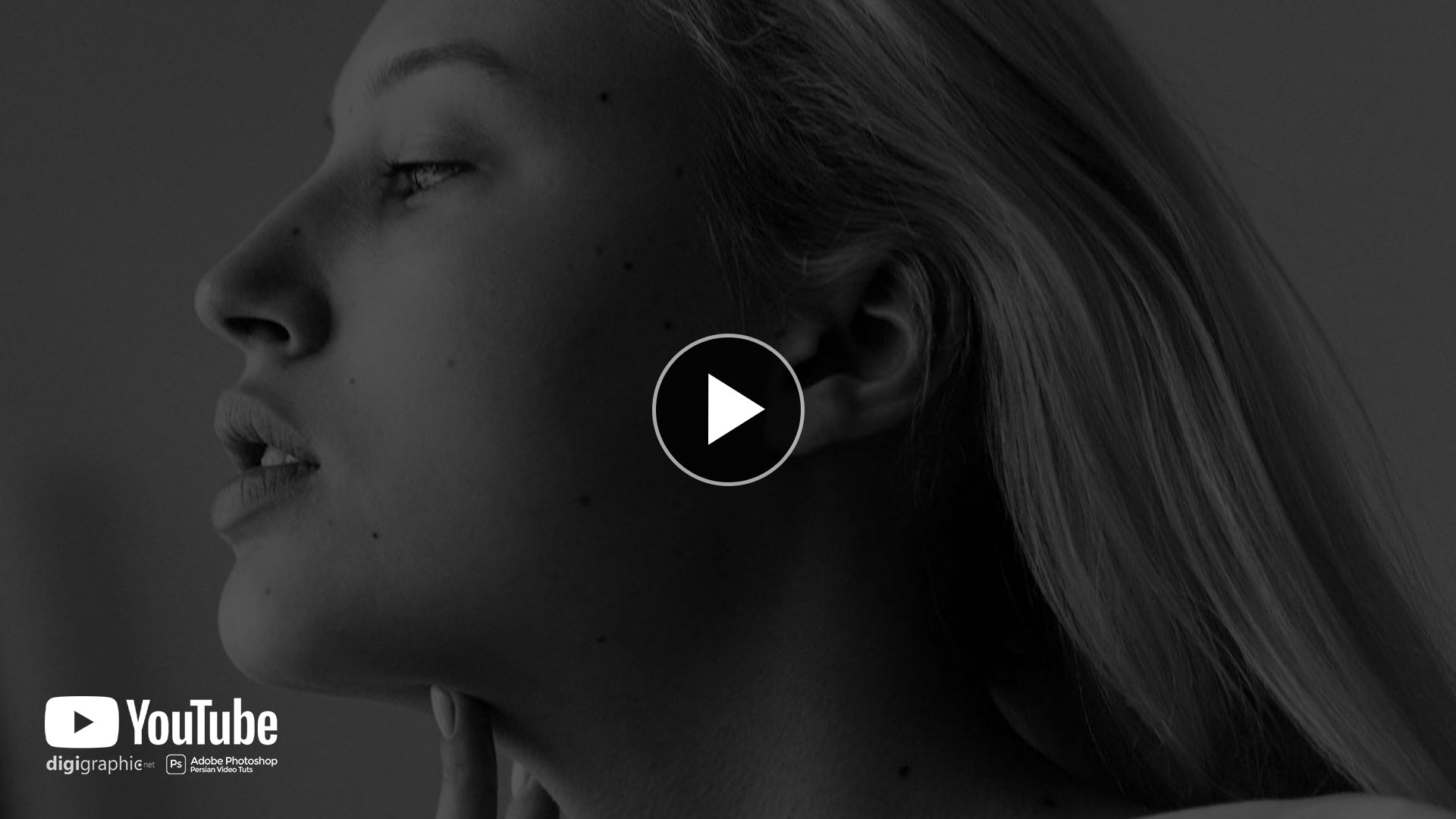
The nose, prominently situated at the center of our face, often draws significant attention in our appearance. For those who are curious about how they might look with a different nose shape but are hesitant about plastic surgery, Photoshop offers a practical solution. This guide will delve into the specifics of using Photoshop’s liquify feature to edit the nose in a photograph. This process is not only useful for personal curiosity but also a valuable skill for digital artists and photographers.
Fix Big Nose in Photoshop

Fix Big Nose in Photoshop ?

Photoshop, a powerhouse in the realm of digital image editing, provides a range of tools that can simulate physical alterations without the need for actual changes to the body. This is especially useful for those who want to visualize a different appearance or for professionals who need to create varied looks for clients or projects.

DOWNLOAD
Fix Big Nose in Photoshop

Preparing Your Image

  1. Choosing the Right Image: Selecting an image with a white background can simplify the editing process. However, this technique is also applicable to images with full backgrounds.
  2. Opening Your Image: Launch Photoshop and open the image you wish to edit.

Creating a Workable Copy

  1. Copying the Image: Press Ctrl + J to create a duplicate layer of the original image. This step is crucial for preserving the original photo.
  2. Converting to a Smart Object: Right-click on the new layer and select ‘Convert to Smart Object‘. This allows for non-destructive editing, meaning you can revert changes if necessary.

Using the Liquify Tool

  1. Navigate to ‘Filter’ and then select ‘Liquify’.
  2. A new window will pop up with your image and various tool options.
  3. The tools on the left side of the Liquify window are your main editing tools, each serving different purposes.
  4. Use a smaller brush for more precise edits on the nose. Adjust the brush size under the ‘Brush Tool’ options.
  5. Use the brush to gently drag and sculpt the nose. Small, subtle movements are key to natural-looking results.
  6. Toggle the preview option on and off to compare the edited version with the original.

Finalizing the Edit

  1. Applying the Changes: Once satisfied, click ‘OK’ to apply the changes to your smart object layer.
  2. Reverting If Necessary: If you need to revert to the original state, you can easily do so by canceling the liquify effect on the smart object.

Conclusion

Through this guide, you’ve learned how to effectively use Photoshop to edit the nose in a photograph. Remember, practice makes perfect. Your skill in using these tools will improve over time, allowing for more refined and natural-looking adjustments.
March 30, 2024/0 Comments
https://en.digigraphic.net/wp-content/uploads/2024/03/Fix-Big-Nose-in-Photoshop-site.jpg 1080 1920 digigraphic.net http://en.digigraphic.net/wp-content/uploads/2023/12/logo.digi_.png digigraphic.net2024-03-30 12:36:312024-03-30 12:47:24Fix Big Nose in Photoshop
Photoshop Oil Paint Filter in Photoshop

Photoshop Oil Paint Filter in Photoshop

Photoshop Tutorials, Video Tutorials

if you want to Use Oil Paint in Photoshop just follow my lead and do it , yo can subscribe our youtube channel and watch other photoshop tutorials , you can find How to Design Logo In Photoshop Tutorial in This youtube Photoshop Tutorials channel and Pls Like The Video. How to Use Photoshop Oil Paint Filter Thanks

Photoshop Oil Paint Filter in Photoshop

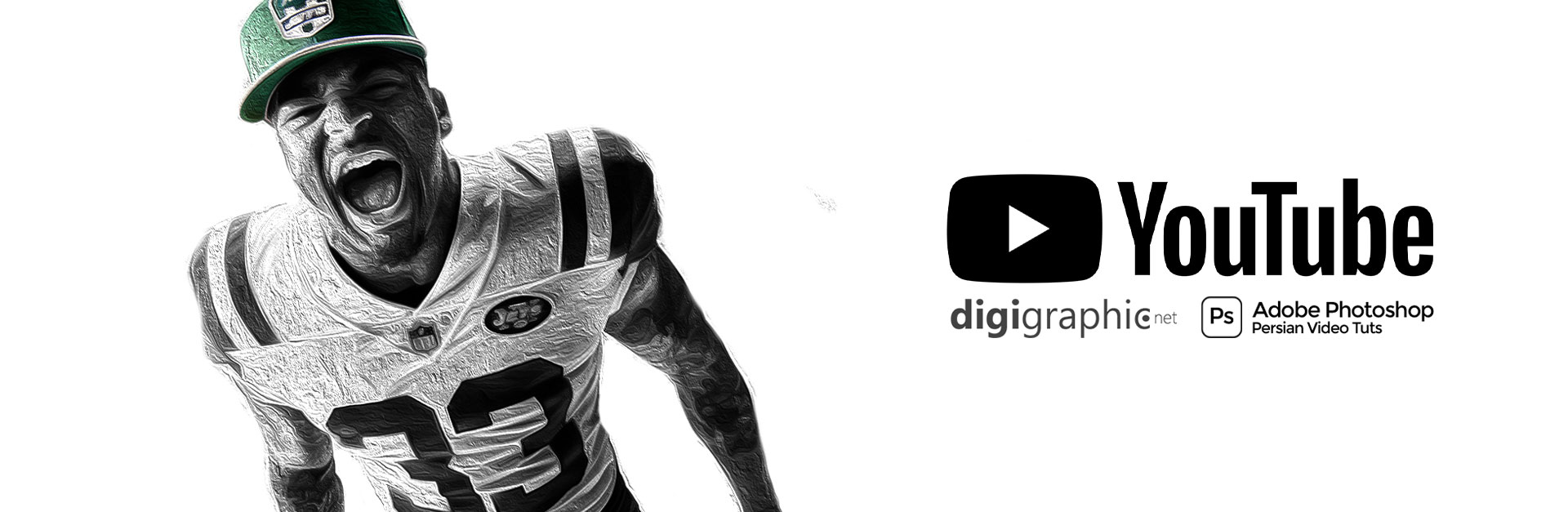
Transform your photos into stunning oil paintings with Photoshop’s Oil Paint filter. Discover how the brush and lighting options affect different aspects of the oil painting effect, and how to adjust the effect in different areas by combining two Oil Paint filters on the same image! Even if you’re a beginner with Photoshop, this video will have you creating paintings from photos in minutes!

DOWNLOAD

if you want to learn about change hair color in photoshop , you can click hear an watch full video tutorials and if you want to download psd files , large format images , after effects projects and more … you can click hear and download free files . Convert Photo to vector

Photoshop Oil Paint Filter in Photoshop

In this video, you’ll learn

0. How to Use Smart Sharpen

1. How to apply the Oil Paint filter to your image non-destructively

2. Where to find the Oil Paint filter in Photoshop

3. How the Brush options affect the style of the brush strokes

4. How the Lighting options affect the contrast of the brush strokes

5. How to Make Light Flares On Oil Painted Image

March 18, 2024/0 Comments
https://en.digigraphic.net/wp-content/uploads/2024/03/tmbnail-SITE.jpg 1080 1920 digigraphic.net http://en.digigraphic.net/wp-content/uploads/2023/12/logo.digi_.png digigraphic.net2024-03-18 19:16:122024-03-18 19:28:33Photoshop Oil Paint Filter in Photoshop
How to Design ICON in Photoshop

How to Design ICON in Photoshop

Logo Design Tutorials, Photoshop Tutorials, Video Tutorials

Creating realistic book cover mock-ups in Photoshop can help you to imagine how your photography portfolio, novel, or non-fiction book will look like in the hands of your readers! How to Create Book Mockup In photoshop

how to design icon in photoshop

In this tutorial, I will teach you How to Design ICON in Photoshop that you can use whenever you want!

Unlike other tutorials, I will not be using the Distort option found under the Free Transform as it can mess up the original aspect ratio of your image.

This technique often results in an unnatural, stretched-out image that is not convincing enough to be a mock-up book cover.

how to design icon in photoshop

How to Create Book Mockup In photoshop \ Easily and soft \ just follow my lead

we make graphic design Video Tutorials every week and publish for free in this channel . we sale business graphic packages in our site . come and visit digigraphic.net Video photoshop tutorials of digigraphic.net we make logo design , photoshop tutorials , graphic tutorials , digigraphic , after effects , premiere , corel draw and more softwares

Adobe Photoshop is a raster graphics editor developed and published by Adobe Inc. for Windows and macOS. It was originally created in 1987 by Thomas and John Knoll. Since then, the software has become the most used tool for professional digital art, especially in raster graphics editing

The most important thing is , It was hard for me before I understood that . all jobs in the world is hard for you . if you just want to look from outside But after leaving the first step you have no fear like past  if you want to be a logo designer and make easy logo Design in photoshop you Dont need fear . say to your self . im a logo designer since my birthday and you can do it 100% . nothing change your mind never ever photo editing in photoshop easy logo design in photoshop

February 13, 2024/0 Comments
https://en.digigraphic.net/wp-content/uploads/2024/02/icon-SITE-1.jpg 1080 1920 digigraphic.net http://en.digigraphic.net/wp-content/uploads/2023/12/logo.digi_.png digigraphic.net2024-02-13 19:07:162024-02-13 19:11:04How to Design ICON in Photoshop
Blend Text in Photoshop - Photoshop Blending Options

Blend Text in Photoshop – Photoshop Blending Options

Photoshop Tutorials, Video Tutorials

Hey Everyone, In this video tutorial I am teaching you How To Blend Text in Photoshop | Blending Options in Photoshop | Adobe Photoshop Watch the tutorial until the end.

Blend Text in Photoshop - Photoshop Blending Options

Blend Text in Photoshop | Photoshop Blending Options

If you have any questions, ask me in the comment section. If you like this tutorial, please share it with your friends. Try to watch all my tutorials.

Blend Text in Photoshop - Photoshop Blending Options

Blending modes are divided into 6 sections: Normal, Darken, Lighten, Contrast, Inversion, and Component, each serving a different purpose. Commonly used specific blending modes include Multiply, Screen, Overlay, and Color, each creating distinct effects on the blend and base layers.

we make graphic design Video Tutorials every week and publish for free in this channel . we sale business graphic packages in our site . come and visit digigraphic.net Video photoshop tutorials of digigraphic.net we make logo design , photoshop tutorials , graphic tutorials , digigraphic , after effects , premiere , corel draw and more softwares

Adobe Photoshop is a raster graphics editor developed and published by Adobe Inc. for Windows and macOS. It was originally created in 1987 by Thomas and John Knoll. Since then, the software has become the most used tool for professional digital art, especially in raster graphics editing

The blending mode specified in the options bar controls how pixels in the image are affected by a painting or editing tool. Think in terms of the following colors when visualizing a blending mode’s effect:

  • The base color is the original color in the image.
  • The blend color is the color being applied with the painting or editing tool.
  • The result color is the color resulting from the blend.

DOWNLOAD

Blending modes are divided into 6 sections: Normal, Darken, Lighten, Contrast, Inversion, and Component, each serving a different purpose. Commonly used specific blending modes include Multiply, Screen, Overlay, and Color, each creating distinct effects on the blend and base layers.

February 13, 2024/0 Comments
https://en.digigraphic.net/wp-content/uploads/2024/02/site-blend.jpg 1080 1920 digigraphic.net http://en.digigraphic.net/wp-content/uploads/2023/12/logo.digi_.png digigraphic.net2024-02-13 14:28:072024-02-13 14:29:43Blend Text in Photoshop – Photoshop Blending Options
Blend Text in Photoshop And Photoshop Blending Options

Blend Text in Photoshop And Photoshop Blending Options

Photoshop Tutorials, Video Tutorials

Hey Everyone, In this video tutorial I am teaching you How To Blend Text in Photoshop | Blending Options in Photoshop | Adobe Photoshop Watch the tutorial until the end.

Blend Text in Photoshop And Photoshop Blending Options

Blend Text in Photoshop And Photoshop Blending Options

If you have any questions, ask me in the comment section. If you like this tutorial, please share it with your friends. Try to watch all my tutorials.

Blend Text in Photoshop And Photoshop Blending Options

Blending modes are divided into 6 sections: Normal, Darken, Lighten, Contrast, Inversion, and Component, each serving a different purpose. Commonly used specific blending modes include Multiply, Screen, Overlay, and Color, each creating distinct effects on the blend and base layers.

we make graphic design Video Tutorials every week and publish for free in this channel . we sale business graphic packages in our site . come and visit digigraphic.net Video photoshop tutorials of digigraphic.net we make logo design , photoshop tutorials , graphic tutorials , digigraphic , after effects , premiere , corel draw and more softwares

Adobe Photoshop is a raster graphics editor developed and published by Adobe Inc. for Windows and macOS. It was originally created in 1987 by Thomas and John Knoll. Since then, the software has become the most used tool for professional digital art, especially in raster graphics editing

The blending mode specified in the options bar controls how pixels in the image are affected by a painting or editing tool. Think in terms of the following colors when visualizing a blending mode’s effect:

  • The base color is the original color in the image.
  • The blend color is the color being applied with the painting or editing tool.
  • The result color is the color resulting from the blend.

DOWNLOAD

Blending modes are divided into 6 sections: Normal, Darken, Lighten, Contrast, Inversion, and Component, each serving a different purpose. Commonly used specific blending modes include Multiply, Screen, Overlay, and Color, each creating distinct effects on the blend and base layers.

January 13, 2024/0 Comments
https://en.digigraphic.net/wp-content/uploads/2024/01/BELEND-SITE-1.jpg 1080 1920 digigraphic.net http://en.digigraphic.net/wp-content/uploads/2023/12/logo.digi_.png digigraphic.net2024-01-13 15:12:172024-02-17 18:46:04Blend Text in Photoshop And Photoshop Blending Options
Birthday Photo Edit In Photoshop Tutorial

Birthday Photo Edit by Ribbon In Photoshop

Photoshop Tutorials, Video Tutorials

To Day we Want To Make Birthday Photo Edit by Ribbon In Photoshop Tutorial | Ribon . We can Use this Flare Trick For poster and Photographys , Ribon Is Easy Work by Brush tool and gradients . we need to Use Blandign modes for This

Birthday Photo Edit In Photoshop Tutorial

Creating design elements in photoshop is a great way to add unique buttons and headers to your web design projects. In this tutorial, we’re going to be making a simple, easy ribbon banner in photoshop. This tutorial is perfect for beginners, but assumes you know the photoshop basics including opening a document, creating layers and duplicating layers.

Birthday Photo Edit In Photoshop Tutorial

This is just one of many options when creating design elements in photoshop for your web project. With flat UI design still prominent as a popular and sleek trend among web designers, using photoshop to build interesting elements will help give your design a fresh look. What other design elements would you like to learn to create in photoshop? Let us know in the comments!

we make graphic design Video Tutorials every week and publish for free in this channel . we sale business graphic packages in our site . come and visit digigraphic.net Video photoshop tutorials of digigraphic.net we make logo design , photoshop tutorials , graphic tutorials , digigraphic , after effects , premiere , corel draw and more softwares

Adobe Photoshop is a raster graphics editor developed and published by Adobe Inc. for Windows and macOS. It was originally created in 1987 by Thomas and John Knoll. Since then, the software has become the most used tool for professional digital art, especially in raster graphics editing

DOWNLOAD

January 6, 2024/0 Comments
https://en.digigraphic.net/wp-content/uploads/2024/01/photo-edit-in-ps-site22-END.jpg 1080 1920 digigraphic.net http://en.digigraphic.net/wp-content/uploads/2023/12/logo.digi_.png digigraphic.net2024-01-06 05:16:472024-01-15 20:17:44Birthday Photo Edit by Ribbon In Photoshop
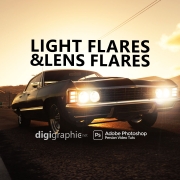
Light Flares & Lens Flares In Photoshop Tutorial

Light Flares & Lens Flares In Photoshop Tutorial

Photoshop Tutorials, Video Tutorials

To Day we Want To Make Light Flares & Lens Flares In Photoshop Tutorial . We can Use this Flare Trick For poster and Photographys , Lens Flares Is Easy Work by Brush tool and gradients . we need to Use Blandign modes for This

Lens Flares In Photoshop

We have Lens Flare in Adobe photoshop By Default . but in This Tutorial We Want Do it In Other Ways . So Newer Forget To Subscribe My Channel and put Comment on This Video Thanks For Subscribe

Light Flares & Lens Flares In Photoshop Tutorial

Light Flares & Lens Flares In Photoshop Tutorial

We Can Make light Fler whit Photoshop Plugins too . we publish soon any videos for photoshop plugin tutorials specially light fler , lens fler . lens flare . light effects . lights flar . light flares and more … Create Light Flares in Photoshop | Lens Flares \ Lens Flares In Photoshop

DOWNLOAD

we make graphic design Video Tutorials every week and publish for free in this channel . we sale business graphic packages in our site . come and visit digigraphic.net Video photoshop tutorials of digigraphic.net we make logo design , photoshop tutorials , graphic tutorials , digigraphic , after effects , premiere , corel draw and more softwares

Adobe Photoshop is a raster graphics editor developed and published by Adobe Inc. for Windows and macOS. It was originally created in 1987 by Thomas and John Knoll. Since then, the software has become the most used tool for professional digital art, especially in raster graphics editing

How to Create Light Flares in Photoshop: A Step-by-Step Guide

Light flares can add a magical and dramatic effect to your images. Whether you’re working on a photo manipulation or just want to enhance your landscape shots, creating light flares in Photoshop can instantly elevate the mood of your design. In this guide, we’ll show you how to easily add stunning light flares and create a realistic lighting effect in Photoshop.

Why Add Light Flares in Photoshop?

Light flares, also known as lens flares, are commonly used in photography and digital art to simulate the effect of light hitting the camera lens. They add depth, focus, and energy to your images, making them more dynamic. Creating light flares in Photoshop is a great way to enhance your artwork and make it visually appealing by simulating the real-world phenomena of light scattering and reflection.

Steps to Create Light Flares in Photoshop:

1. Create a New Document or Open an Existing Image:

First, open the image you want to work on in Photoshop. You can either start with a blank canvas or use an existing photo. Make sure the background and elements of your image complement the light flare effect you want to achieve.

2. Add a New Layer for the Light Flares:

To ensure the light flares are non-destructive, create a new layer by going to Layer > New > Layer. This will allow you to work on the flare effect without altering your original image.

3. Choose the Brush Tool:

Select the Brush Tool (B) from the toolbar. Set the brush size to a large, soft round brush with low opacity. You may also want to adjust the brush hardness to 0% for a smoother effect. Choose a bright color, such as white or yellow, to mimic the light flare.

4. Paint the Light Flares:

On your new layer, begin painting areas where you want the light flares to appear. These can be points of intense brightness that simulate the light source. Use varying sizes of the brush to create different intensities of light and depth.

5. Apply Gaussian Blur:

To make the light flares look more natural, go to Filter > Blur > Gaussian Blur. Adjust the blur radius until the light flares have a soft, glowing appearance. This step helps simulate the natural spread of light.

6. Add a Lens Flare for Realism:

For a more realistic light flare effect, go to Filter > Render > Lens Flare. Photoshop offers several lens flare types to choose from. Adjust the flare brightness, position, and lens type until you achieve the desired look. You can also experiment with the screen blending mode for a more transparent effect.

7. Refine the Effect with Layer Styles:

For added dimension, try using layer styles such as Outer Glow or Inner Glow to enhance the light flares. Experiment with the opacity and size of these glows to make your light flares blend seamlessly with the rest of the image.

8. Adjust the Layer Opacity and Blending Mode:

To fine-tune your light flares, adjust the opacity of the layer and experiment with different blending modes, like Soft Light or Overlay, to achieve a more subtle or dramatic effect.

9. Final Touches:

Once you’re happy with the intensity and placement of the light flares, consider adding extra details like light reflections or adjusting the brightness/contrast to make the light flares more integrated into the overall composition.

Tips for Creating Stunning Light Flares in Photoshop:

  • Use multiple layers: Create several layers for different light sources or varying intensity to make the light flares more realistic.
  • Experiment with different colors: Light flares can come in various colors, depending on the type of light source (e.g., sunlight, neon, or artificial lighting).
  • Work with the image’s natural light: Ensure the position and direction of the light flares match the light source already present in your photo for a more cohesive look.
  • Use custom brushes: You can find or create custom brushes for light flares in Photoshop, which can offer more intricate and creative flare effects.

Conclusion

Creating light flares in Photoshop is a fantastic way to add dramatic lighting effects to your images. With the right tools and techniques, you can simulate realistic light scattering and enhance the atmosphere of your compositions. By following this step-by-step guide, you’ll be able to create beautiful light flares that transform your photos into works of art. Experiment with different techniques, and let your creativity shine!

How to add a lens flare in Adobe Photoshop.
  1. Open your photo in Photoshop.
  2. Create a new layer. Go to Edit › Fill, and fill it with 50% gray.
  3. Set the blending mode to Overlay.
  4. Go to Filter › Render › Lens flare. Select which type of lens flare you want to emulate.
  5. Position your lens flare, then click OK.
January 5, 2024/0 Comments
https://en.digigraphic.net/wp-content/uploads/2024/01/tmbnail-2site-1.jpg 1080 1920 digigraphic.net http://en.digigraphic.net/wp-content/uploads/2023/12/logo.digi_.png digigraphic.net2024-01-05 09:15:052024-11-27 09:22:28Light Flares & Lens Flares In Photoshop Tutorial
Blend Text in Photoshop | Photoshop Blending Options

Blend Text in Photoshop | Photoshop Blending Options

Photoshop Tutorials, Video Tutorials

Hey Everyone, In this video tutorial I am teaching you How To Blend Text in Photoshop | Blending Options in Photoshop | Adobe Photoshop Watch the tutorial until the end.

Blend Text in Photoshop

Blend Text in Photoshop | Photoshop Blending Options

If you have any questions, ask me in the comment section. If you like this tutorial, please share it with your friends. Try to watch all my tutorials.

Blend Text in Photoshop | Photoshop Blending Options

Blending modes are divided into 6 sections: Normal, Darken, Lighten, Contrast, Inversion, and Component, each serving a different purpose. Commonly used specific blending modes include Multiply, Screen, Overlay, and Color, each creating distinct effects on the blend and base layers.

we make graphic design Video Tutorials every week and publish for free in this channel . we sale business graphic packages in our site . come and visit digigraphic.net Video photoshop tutorials of digigraphic.net we make logo design , photoshop tutorials , graphic tutorials , digigraphic , after effects , premiere , corel draw and more softwares /  blending text in photoshop

Adobe Photoshop is a raster graphics editor developed and published by Adobe Inc. for Windows and macOS. It was originally created in 1987 by Thomas and John Knoll. Since then, the software has become the most used tool for professional digital art, especially in raster graphics editing

The blending mode specified in the options bar controls how pixels in the image are affected by a painting or editing tool. Think in terms of the following colors when visualizing a blending mode’s effect:

  • The base color is the original color in the image.
  • The blend color is the color being applied with the painting or editing tool.
  • The result color is the color resulting from the blend.

DOWNLOAD

Blending modes are divided into 6 sections: Normal, Darken, Lighten, Contrast, Inversion, and Component, each serving a different purpose. Commonly used specific blending modes include Multiply, Screen, Overlay, and Color, each creating distinct effects on the blend and base layers.

Blend Text in Photoshop – Unlock Your Creative Potential!

Learning how to blend text in Photoshop is a must-have skill for anyone interested in creating stunning, eye-catching designs. Whether you’re working on a logo, poster, or social media graphic, blending text seamlessly with your background can make all the difference. Photoshop offers a range of tools and techniques to help you integrate text with images or graphics, creating a visually appealing and professional look.

Why Blend Text in Photoshop?

Blending text with your design allows for smoother transitions between your typography and the background, making your artwork feel cohesive and dynamic. By using Photoshop’s various blending modes, opacity adjustments, layer styles, and textures, you can make your text appear as though it’s part of the image rather than just placed on top.

Easy Steps to Blend Text in Photoshop:

  1. Create Your Text – Start by typing out your desired text using the Text Tool. Choose the font, size, and color that best suits your design.
  2. Apply Blending Modes – Photoshop offers different blending modes like Overlay, Soft Light, and Multiply that can change how your text interacts with the background. Play around with these settings to see how they affect your text.
  3. Adjust Opacity – Reduce the opacity of your text layer for a more subtle blending effect, giving it a transparent look that integrates smoothly with the background.
  4. Use Layer Styles – Add effects like Drop Shadow, Outer Glow, or Stroke to make your text pop and further enhance the blending effect.
  5. Texture and Patterns – You can also add textures or patterns to your text, allowing it to blend naturally with the overall composition of your image.

Advanced Techniques to Blend Text in Photoshop:

For more advanced users, using custom brushes, gradients, or layer masks can help create more intricate text blending effects. Experiment with these tools to produce truly unique and creative results.

Benefits of Blending Text in Photoshop:

  • Cohesive Design: Text and background blend together, creating a harmonious and professional design.
  • Enhanced Visual Appeal: Blended text adds depth and texture to your projects, making them more engaging.
  • Versatility: Whether you’re designing for digital or print, blended text can elevate your overall design aesthetic / Graphic Magazine

If you’re looking to take your design skills to the next level, learning how to blend text in Photoshop is an essential technique that can help you create visually compelling and dynamic artwork. Experiment with different blending options, and soon you’ll be creating stunning designs that grab attention!

January 4, 2024/0 Comments
https://en.digigraphic.net/wp-content/uploads/2024/01/tmbnail-SITE.jpg 1080 1920 digigraphic.net http://en.digigraphic.net/wp-content/uploads/2023/12/logo.digi_.png digigraphic.net2024-01-04 02:40:262024-12-08 22:31:18Blend Text in Photoshop | Photoshop Blending Options
Remove Text in Photoshop Tutorial

Remove Text in Photoshop Tutorial

Photoshop Tutorials

Remove Text in Photoshop Tutorial | Images are everywhere on the web, and a great many of them have text over top of them. Sometimes they’re hilarious memes that you want to update or date-time stamps that ruin the composition of your image – or any of a hundred other possible problems.

Remove Text in Photoshop Tutorial

But luckily, they can all be edited to delete the text in Photoshop!

But since most of you will be looking for tips on how to remove text that’s already been saved as part of the image, here are a couple of different methods to remove text from images in Photoshop.

Remove Text in Photoshop Tutorial

How To Remove Text in Photoshop Tutorial

If your text is located overtop of a plain, solid-colored background, then you’re in luck! The removal process is extremely simple: just place some new pixels that match the background color over top of the text, and it will disappear.

we make graphic design Video Tutorials every week and publish for free in this channel . we sale business graphic packages in our site . come and visit digigraphic.net Video photoshop tutorials of digigraphic.net we make logo design , photoshop tutorials , graphic tutorials , digigraphic , after effects , premiere , corel draw and more softwares

Adobe Photoshop is a raster graphics editor developed and published by Adobe Inc. for Windows and macOS. It was originally created in 1987 by Thomas and John Knoll. Since then, the software has become the most used tool for professional digital art, especially in raster graphics editing

The most important thing is , It was hard for me before I understood that . all jobs in the world is hard for you . if you just want to look from outside But after leaving the first step you have no fear like past  if you want to be a logo designer and make easy logo Design in photoshop you Dont need fear . say to your self . im a logo designer since my birthday and you can do it 100% . nothing change your mind never ever photo editing in photoshop easy logo design in photoshop

DOWNLOAD

December 30, 2023/0 Comments
https://en.digigraphic.net/wp-content/uploads/2023/12/4634673474.jpg 1080 1920 digigraphic.net http://en.digigraphic.net/wp-content/uploads/2023/12/logo.digi_.png digigraphic.net2023-12-30 19:07:252024-01-15 20:25:03Remove Text in Photoshop Tutorial
How to Design logo Typography in Photoshop

How to Design logo Typography in Photoshop

Logo Design Tutorials, Photoshop Tutorials

Make a Glow Effect In Photoshop ? hello . im sina abbasi from digigraphic.net to day we want to make a amazing Glow effect in photoshop easy  . you must know a little about Adobe photoshop pc program . but you can just follow my lead and make a Stretch Effect on Portrait image in photoshop . you can make great design from your idea . you can make easy Glow Effect poster or face Glow Effect in adobe photoshop whit a few Knowledge from PS 2021 files and cover design in 10 Minutes . its no hard – its easy . you can do it . if you want to Design In Photoshop

How to Design logo Typography in Photoshop

How to Create Glow Effect and Long Face Stretch Effect on Portrait image In Photoshop Tutorial

in this tutorial we want to use pen tool and shape path in adobe photoshop cc 2021 , so we make a path with pen tool for do Glow Effect on image then we chose smudge tool and make sure about brush size -set whit face middle of image done . then right click on path layer and chose stock path done

How to Design logo Typography in Photoshop

How To Create Glow Effect and Long Face Stretch Effect on Portrait image In Photoshop Tutorial

The most important thing is , It was hard for me before I understood that . all jobs in the world is hard for you . if you just want to look from outside But after leaving the first step you have no fear like past  if you want to be a logo designer and make easy logo Design in photoshop you Dont need fear . say to your self . im a logo designer since my birthday and you can do it 100% . nothing change your mind never ever photo editing in photoshop easy logo design in photoshop

December 30, 2023/0 Comments
https://en.digigraphic.net/wp-content/uploads/2023/12/23523121.jpg 1080 1920 digigraphic.net http://en.digigraphic.net/wp-content/uploads/2023/12/logo.digi_.png digigraphic.net2023-12-30 18:58:452023-12-30 18:58:45How to Design logo Typography in Photoshop
Page 1 of 41234

Commercial Ads

English Youtube Channel
Ai Youtube Channel
Persian Youtube Channel
Photoshop Tutorials

Digigraphic Instagram
Digiprint
Online Card
Sinaabasi Instagram

Facebook Page
Telegram Group
Telegram Channel
Live Tv

X-Social (twitter)
Reddit
NFC Cards
Digi QrCode

Aparat Channel
Lightroom Tutorial
Logo Design
Photoshop Tutorials

English Youtube Channel
Ai Youtube Channel
Persian Youtube Channel
Photoshop Tutorials

Digigraphic Instagram
Digiprint
Online Card
Sinaabasi Instagram

X-Social (twitter)
Reddit
NFC Cards
Digi QrCode

Facebook Page
Telegram Group
Telegram Channel
Live Tv

Aparat Channel
Lightroom Tutorial
Logo Design
Photoshop Tutorials

Scroll to top